Manage project Skills
Project scope distributes a Skill into selected project folders. In desktop v1.1.0, the project filter finds installed Skills; each Skill's target settings control its deployments. See Tools and scope for directory and platform support.
Find Skills in a project
- Open My Skills → Project.
- Search the project picker and check the folder name and full path.
- Select a project to show its Skills. Select all projects to show the project list again.
- Switch to All, or clear filters, to return to the complete library.
The menu includes deployed and recently used projects. Selecting a project does not reinstall Skills or truncate deployment data. A Skill used in three projects still shows three projects after filtering. Tool indicators also retain the full deployment state.
Filters only choose visible Skills. Enable, update, delete and bulk tool actions use each selected Skill's saved scope and configuration. Filtering does not limit these actions to one project. Delete removes the library entry; use target settings to remove a deployment from one project.
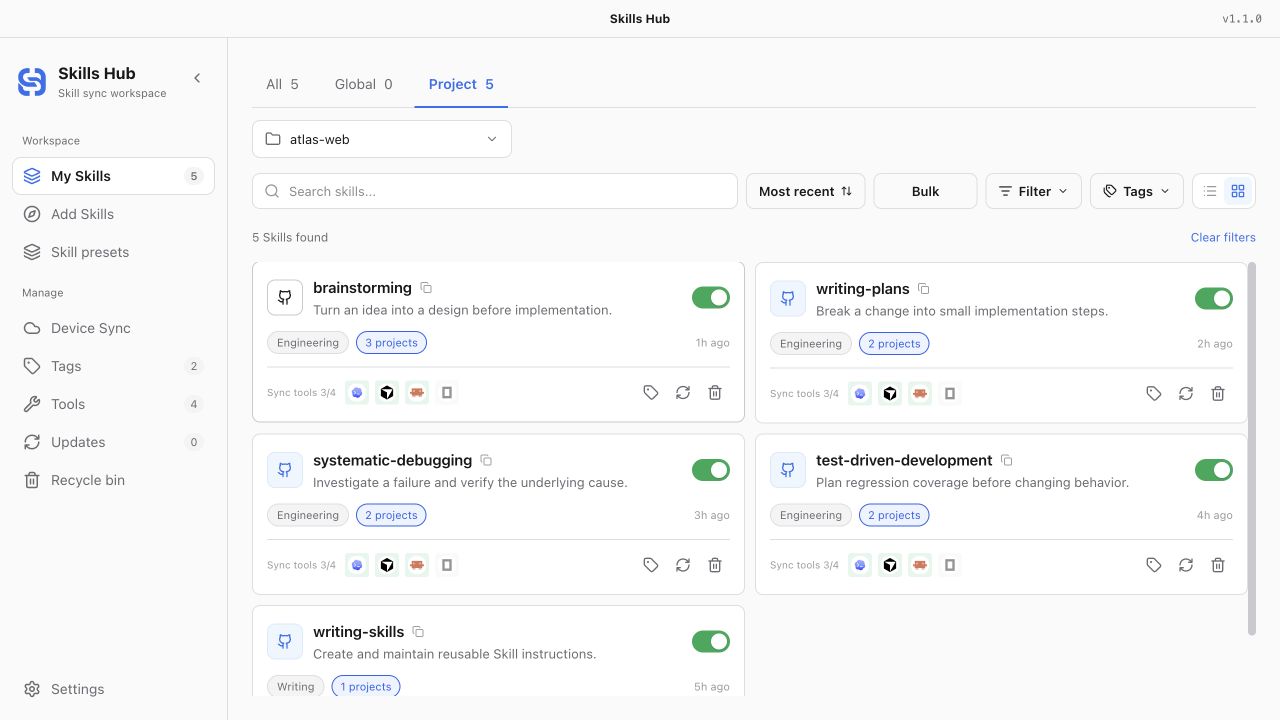
English v1.1.0 frontend with sample data.
Change a Skill's project deployments
- Click its scope badge, such as 2 projects.
- In Manage targets, select Projects and review all checked folders.
- Add a folder or uncheck a project you no longer need. Adjust tools if required.
- Click Apply target settings.
- If deployments will be removed, review the removal list and click Confirm target changes.
- Check each result and the updated project count.
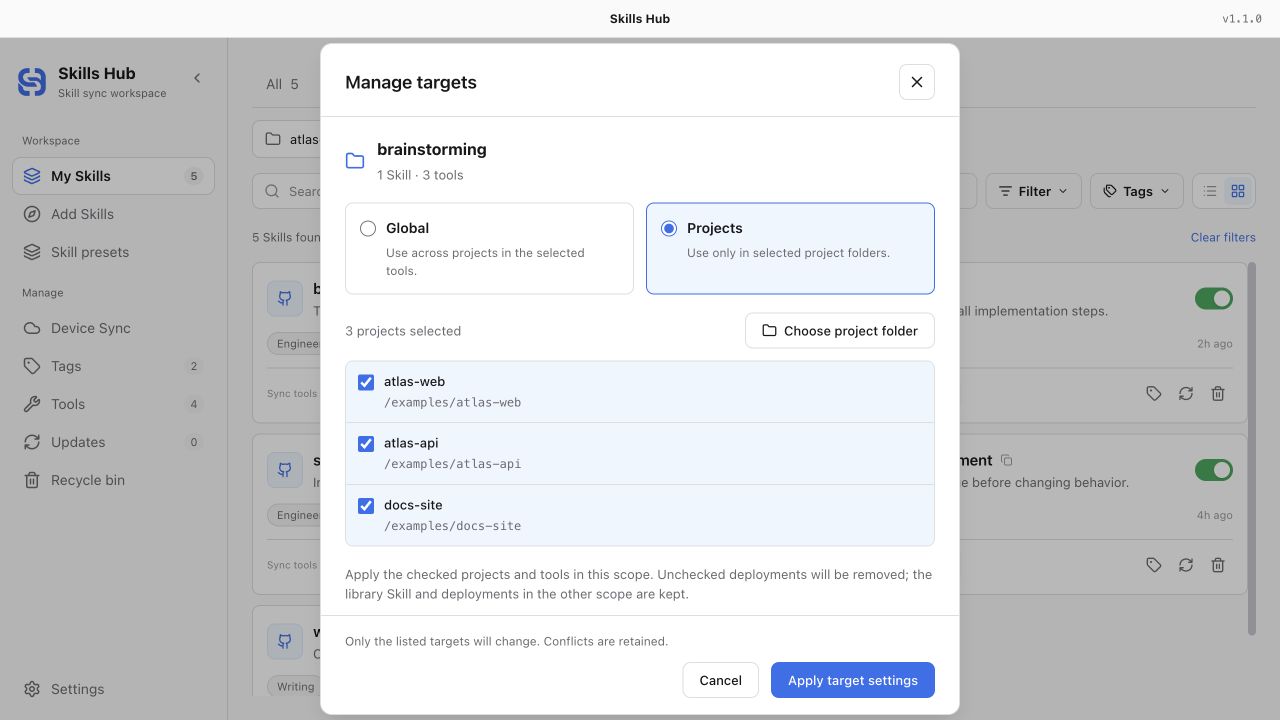
English v1.1.0 frontend with sample data. These paths are examples, not your folders.
Unchecking removes the corresponding deployment in the selected scope. The library Skill and deployments in the other scope stay. Retained projects keep their existing tool assignments; new projects use the selected tools. You can clear every project or tool, with removal confirmation before execution.
Resolve conflicts or failures
The backend revalidates the preview before writing. If a new deployment is blocked or fails, old deployments awaiting removal stay. Resolve the reported tool, path and error, then recheck the same result. Completed items are not repeated. A changed state can make the previous preview stale.
Tools can share a directory. Removing one logical target keeps the files while another target still needs them. Inspect modified files before resolving a conflict; do not delete them just to force the operation through. See Library and sync concepts.
Reuse a combination elsewhere
Save a Skill preset when several projects need the same Skills. Presets store members and tool assignments, not project paths. Choose folders when applying and use history to review outcomes or undo eligible additions.
Project distribution is available on macOS and Linux for compatible tools. Windows uses global distribution.
- Quick start
- Download and install
- Library and sync concepts
- Find and install Skills
- Install collections
- Import existing Skills
- Organize your library
- Skill presets and history
- Distribute to AI tools
- Manage project Skills
- Manage tools
- Supported tools and directories
- Update Skills
- Sync across devices
- Delete and restore
- Settings and troubleshooting
- Manage with AI
- CLI reference