Manage with AI
Enable the official manage-skills-hub Skill to manage your library through conversations with an AI coding tool. AI and the desktop app share the same library. Operations affect real tool directories.
Enable AI Management
- Open Settings → AI Management.
- Click Enable.
- Wait for the matching CLI to download and pass verification.
- Check the official Skill and tool distribution results.
- Open a new terminal. If the command is still unavailable, quit and restart the terminal application.
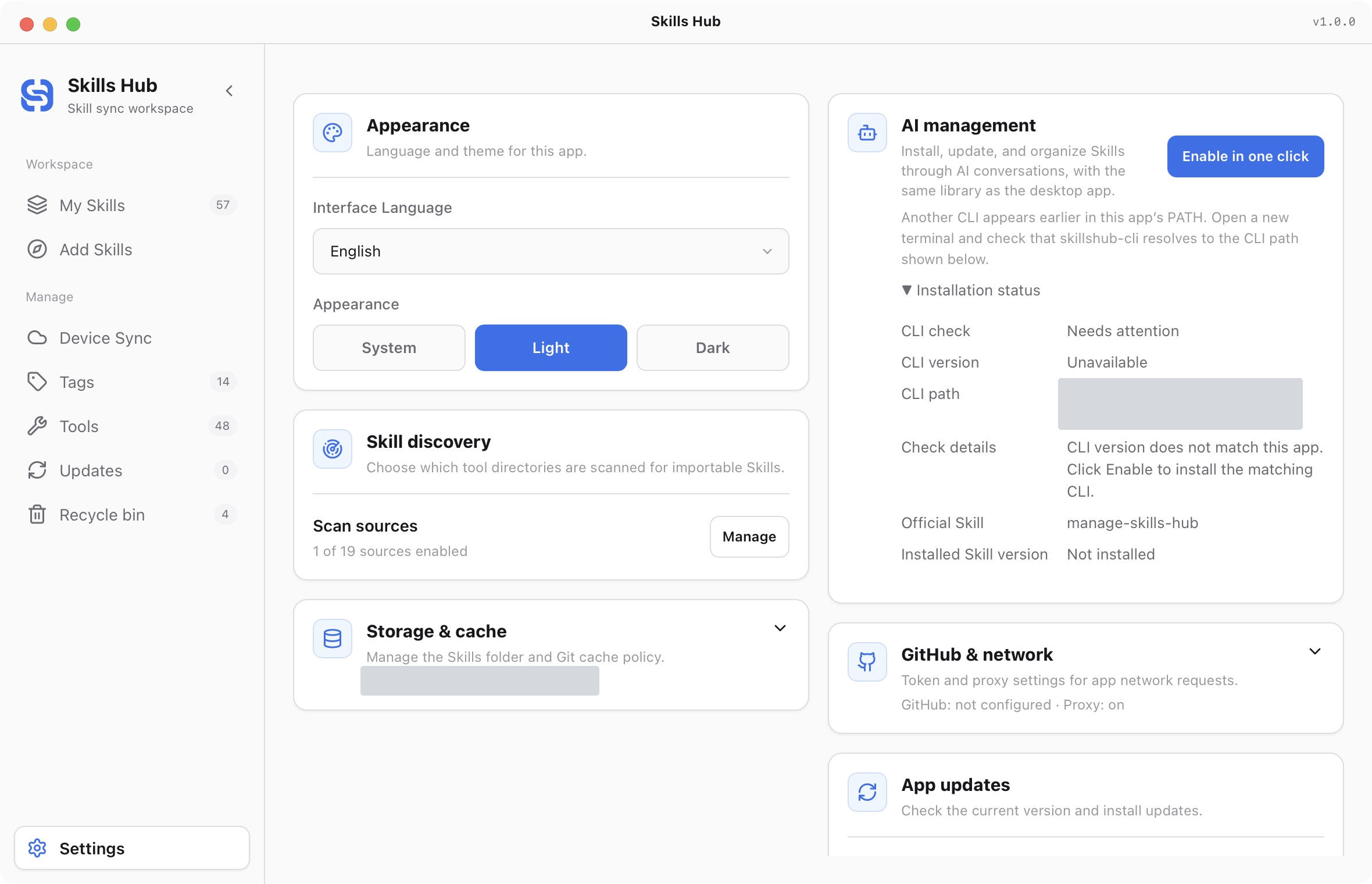
English interface (v1.0.0). The CLI check needs attention because its version does not match the app, and the official management Skill is not installed. This is not a successful setup. Private paths are hidden.
Desktop installers do not include the CLI. First setup needs a connection. An installed, verified matching version works offline, and the CLI can run after the desktop app closes. Node.js and npm are not required.
Terminal setup supports Bash and Zsh on macOS/Linux and the Windows user PATH. Other shells can require manual configuration as described by the app.
Ask AI to use the official Skill
Use a tool that has received the official Skill. Give it a clear request, for example:
Use manage-skills-hub to list my Skills and identify entries not distributed to Codex.
Install the selected Skill from this repository into the library only. Do not distribute it to tools yet.
Check all Skills for updates. Show the changes and wait for my confirmation before updating.
The default AI installation flow selects detected, enabled tools. An explicit tool list, library-only request, or project scope takes precedence. All tools does not mean every adapter in the supported-tool catalog.
Install a collection with AI
Give the website’s copied collection instructions to an Agent using the official management Skill. Specify tools, scope, and any batch tag. The Agent should process the exact commits and directories in the list, not every Skill in each repository.
Existing same-source entries retain their content and tags but can be distributed to your requested tools. Batch tags apply only to new entries. After a partial failure, continue tagging or distributing installed entries instead of reinstalling successful ones. The CLI has no dedicated collection command.
Confirm and inspect results
Removal and adoption require a review of the affected scope before confirmation. Batch updates start with a change check. On name conflicts, local edits, or concurrent writes, AI should report the issue instead of forcing an overwrite or editing the database manually.
After an operation, inspect the records, tags, and target status in My Skills. If the library change succeeded but tool distribution was incomplete, the result should describe both parts separately.
Update and repair
Update the CLI and official Skill explicitly in Settings → AI Management. Startup does not automatically install or upgrade them. If download or verification fails, check the network and proxy before retrying. Preserve the existing working CLI.
For a terminal command conflict, use the terminal repair action in the interface. If the official Skill is missing, use Enable to repair it. Do not substitute an unrelated script with the same command name.
Desktop-only operations
Use the desktop app for device sync, conflict resolution, system schedules, credentials, proxy and storage settings, app updates, recycle-bin restoration, and permanent deletion.
Do not paste Tokens, authorization codes, or private keys into AI conversations or Skill files. For standalone installation and exact arguments, see the CLI reference.
- Quick start
- Download and install
- Library and sync concepts
- Find and install Skills
- Install collections
- Import existing Skills
- Organize your library
- Distribute to AI tools
- Manage tools
- Supported tools and directories
- Update Skills
- Sync across devices
- Delete and restore
- Settings and troubleshooting
- Manage with AI
- CLI reference