Update Skills
A Skill update reads changes from the source recorded during installation. It is separate from updating the Skills Hub app or syncing between devices.
Update one Skill
- Find the entry in My Skills.
- Check its source and issue notice.
- Run the entry's update action.
- Inspect the content and tool status when it finishes.
Git updates need access to the remote source. Local updates need the original folder. Entries received through device sync without a local source binding cannot update from the other computer’s folder and are excluded from scheduled source updates. Continue receiving changes through device sync.
Updates replace central-library content with the recorded source, including file removals and renames. They do not merge local edits and also remove extra files that are absent from the source. Back up and compare changes you need to keep. Tool-target conflict and concurrent-change checks remain active, and the source must contain SKILL.md.
Collection installation keeps existing same-source entries; reopening a collection does not update their content. Library updates read the recorded source. If that source is pinned to an exact commit, updating does not switch it to the latest repository branch.
Update multiple Skills
- Open My Skills and enter bulk mode.
- Select the Skills to update and review the visible selection.
- Click Update in the bulk toolbar and follow the progress for each Skill.
- Review the updated, unchanged, skipped, and failed counts, along with error details or pending tool-sync notices.
Bulk updates use each Skill's recorded source and preserve its tool selection and distribution scope. Disabled Skills and Skills without a bound source are skipped. Enable them or bind their source before updating. The Update button is unavailable when no selected Skill can be updated.
A failed Skill does not stop the remaining updates. If you click Cancel, the current Skill finishes before the remaining queue stops. Failed and unprocessed Skills remain selected. Resolve the reported issues, then click Update again to retry.
The source-access and content-replacement rules are the same as for a single update. If library content is updated but tool targets remain pending, inspect those targets using the result notices.
Schedule updates
- Open Management Center → Updates.
- Choose an interval or a daily execution time.
- Review local-source notices. On macOS, system permissions can restrict access to Desktop, Documents, and Downloads.
- Save and enable the system scheduled task.
- Inspect the next run result to confirm that it works.
This feature registers an operating-system task. It can update Skills while the app is closed. The computer must still be able to run tasks. Shutdown, sleep, inaccessible sources, and network problems can prevent execution. Use schedule values supported by your system.
Device sync uses a different scheduler that runs while the app is open. Its schedule does not replace the system Skill update task.
Read the run result
The update page shows checked, unchanged, updated, and failed counts, plus recent start and finish information. Review failures individually.
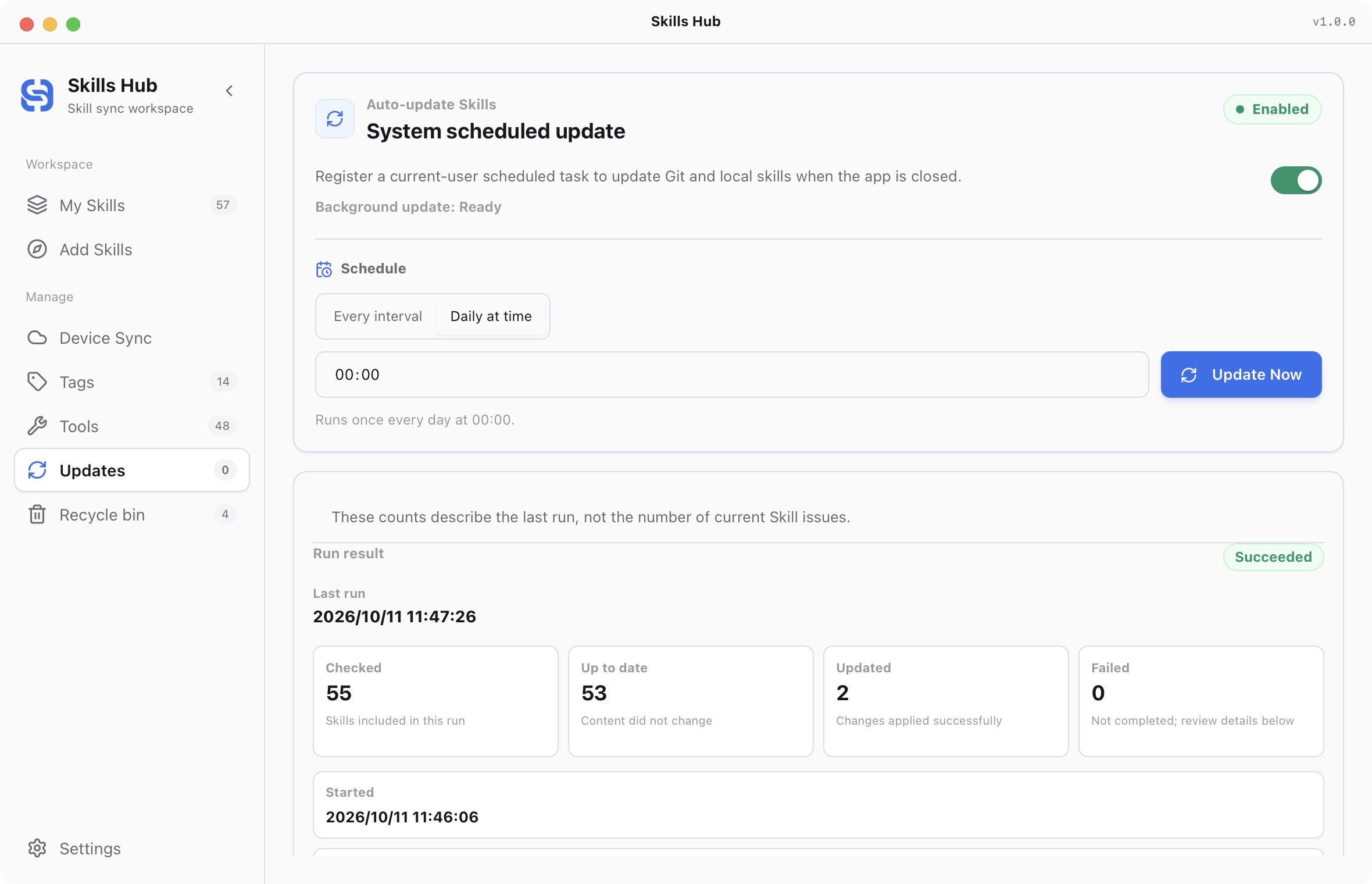
English interface (captured in v1.0.0). The last run succeeded. Counts describe that run, not the number of current Skill issues.
- Source unavailable: restore the local source or check the remote address and access.
- Network failure: check the app proxy, connection, and service availability.
- Tool failure: library content may already be updated; repair the affected target.
- Protected content: compare local edits and source changes before deciding what to retain.
A failed task entry does not mean that every Skill failed. Do not delete and reinstall successful entries.
Update the app and AI Management components
Use the title-bar update action or Settings to upgrade Skills Hub itself. Restart after installation to use the new version.
Update the AI Management CLI and official manage-skills-hub Skill explicitly in Settings → AI Management. App startup does not automatically install or upgrade these components. If an update fails, use the recovery or retry action while preserving the working version. See AI Management.
- Quick start
- Download and install
- Library and sync concepts
- Find and install Skills
- Install collections
- Import existing Skills
- Organize your library
- Distribute to AI tools
- Manage tools
- Supported tools and directories
- Update Skills
- Sync across devices
- Delete and restore
- Settings and troubleshooting
- Manage with AI
- CLI reference