Sync across devices
Device sync exchanges library content through a GitHub, GitLab, or Gitee repository. Each computer keeps its own local library and tool configuration.
What is synchronized
| Synchronized | Kept on this computer |
|---|---|
| Skill files, descriptions, and tags | Tool targets and project paths |
| Portable library metadata | Local source bindings, settings, caches, and credentials |
After receiving Skills on another computer, choose distribution targets for its installed tools. The sync repository is not a backup of system configuration or credentials. Check Skill files for content that should not be shared before uploading them.
Connect the first computer
- Open Device Sync.
- Select GitHub, GitLab, or Gitee.
- Use browser authorization or open Other connection methods · Token / SSH to configure access.
- With browser authorization or a Token, load and select a repository, or create one through the available control. For SSH-only access, enter the SSH repository address and branch manually; the authorized repository picker is not available.
- Check its address, branch, and visibility.
- Save, check changes, and run the first sync.
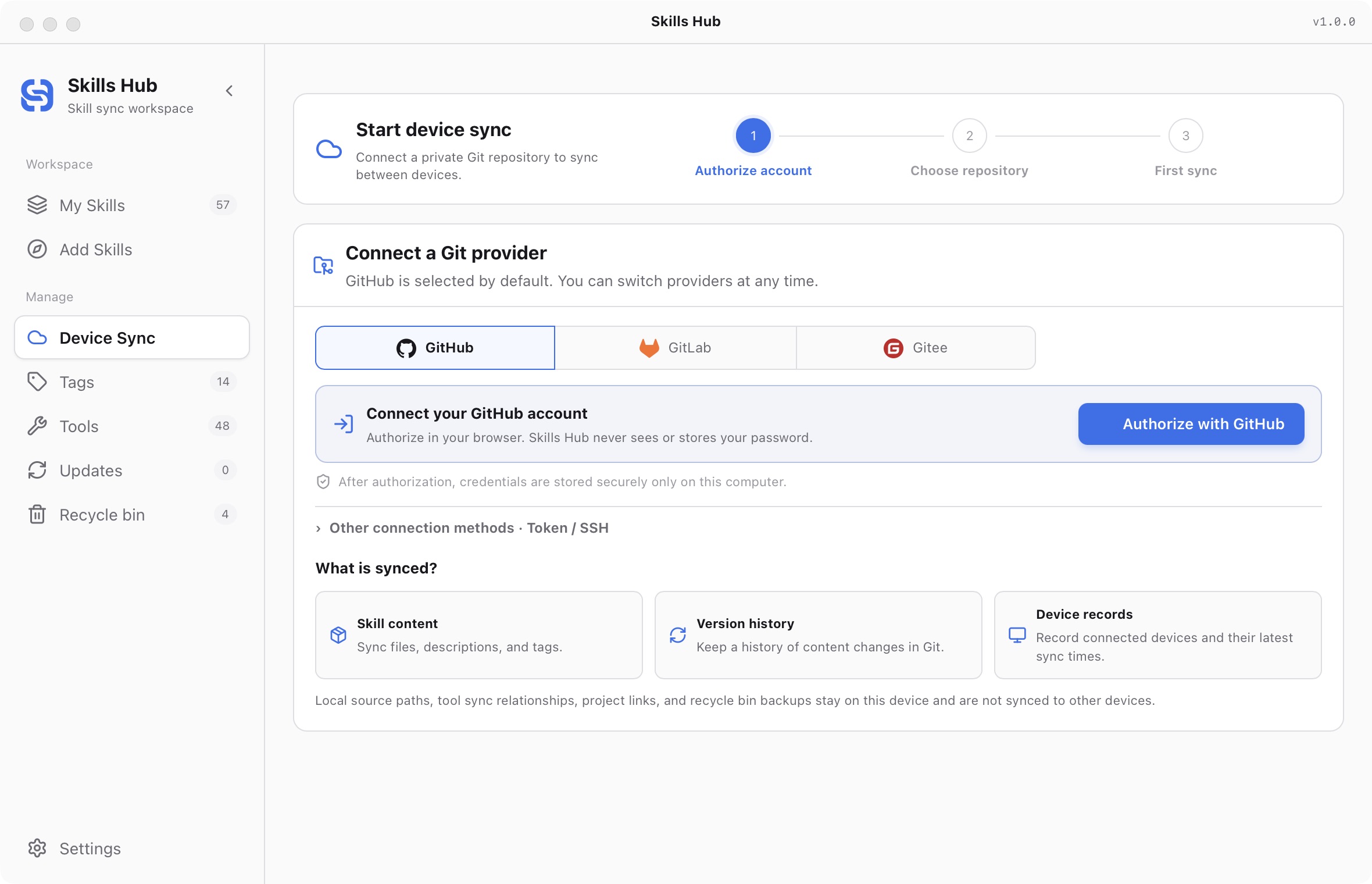
English interface (captured in v1.0.0).
Browser authorization depends on provider and app configuration. Use the methods offered in your app. Gitee supports manual Token setup. Enter credentials only in the app's dedicated controls. SSH uses keys from the system SSH Agent; do not paste private-key content into a Skill.
Use a dedicated private repository where possible. Uploading to a public repository requires confirmation and exposes the uploaded Skill content publicly. Respect read-only checks; do not assume that every accessible repository accepts uploads.
Connect another computer
- Install a compatible Skills Hub version.
- Open Device Sync and configure authorization on that computer.
- Select the same sync repository and branch.
- Check changes and run sync.
- Choose local tool targets for the received Skills.
Local source folder paths are not copied to the new computer. Git repository information can remain in the portable library metadata. Entries without a local source binding receive changes through device sync; they cannot update directly from the original computer’s folder. Same-name downloads can remain separate entries. Compare sources and content before organizing them. Set recognizable device names to distinguish computers in the device list and history.
Read the sync status
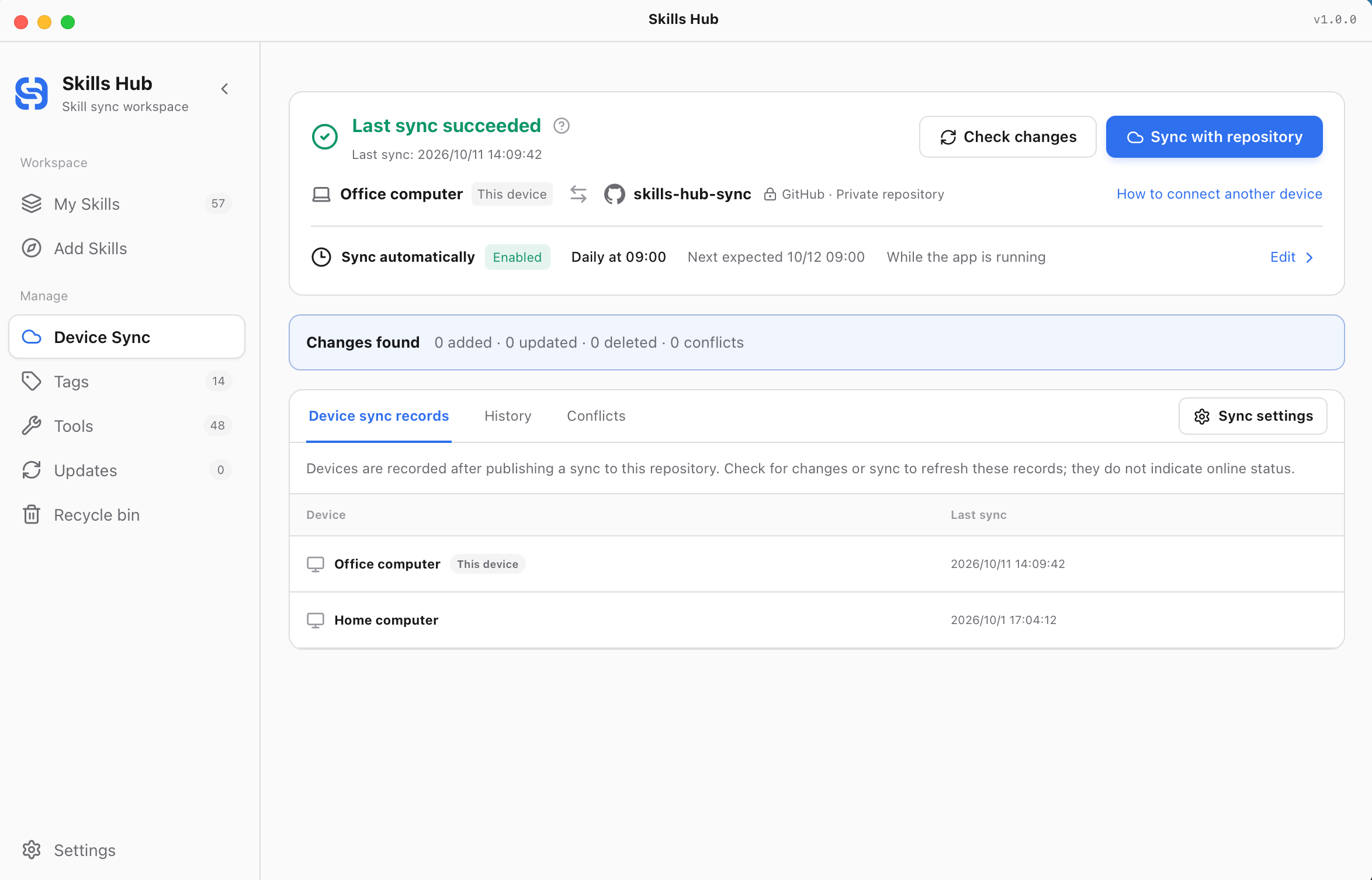
English interface (v1.0.0). This example shows a successful last sync, a daily 09:00 schedule, and sync records for two computers.
Select Check changes to review pending changes, then use Sync with repository when needed. Last sync succeeded describes the most recent result; new changes may have occurred since then.
Device sync records appear after a device publishes a sync to this repository. Checking changes or syncing refreshes these records. They do not indicate whether a device is currently online.
Automatic sync and history
You can enable startup sync, interval sync, or a daily schedule. Intervals accept whole numbers from 5 to 43,200 minutes. Daily schedules use this computer's time zone.
Automatic device sync runs while the app is open. Waking from sleep can trigger one catch-up run. Failures use a retry backoff; conflicts pause automatic sync. Do not rely on this schedule after quitting the app.
History shows individual changes and failure details. It retains the latest 100 meaningful runs, not an unlimited backup history.
Resolve conflicts or disconnect
Independent edits can merge automatically. Real conflicts identify the Skill and affected files. Choose whether to keep this device or use the sync repository, then apply the choice.
Inspect the content you need from both versions first. Using the sync repository replaces the conflicting local version. It does not only download missing files.
Disconnecting stops the repository association. It is not a request to empty the local library. For deletion and recovery, use the recycle bin. If authorization expires, use credential recovery in the app instead of deleting local Skills.
- Quick start
- Download and install
- Library and sync concepts
- Find and install Skills
- Install collections
- Import existing Skills
- Organize your library
- Distribute to AI tools
- Manage tools
- Supported tools and directories
- Update Skills
- Sync across devices
- Delete and restore
- Settings and troubleshooting
- Manage with AI
- CLI reference