Install collections
Collections group Skills around a task so that you can choose what you need. Collection browsing and installation require Skills Hub desktop v1.0.0 or later. Open a collection in the desktop app or on the website, then confirm installation in the app.
Browse collections in the app
- Open Add Skills to browse collections.
- Search by purpose, or scroll to load more collections.
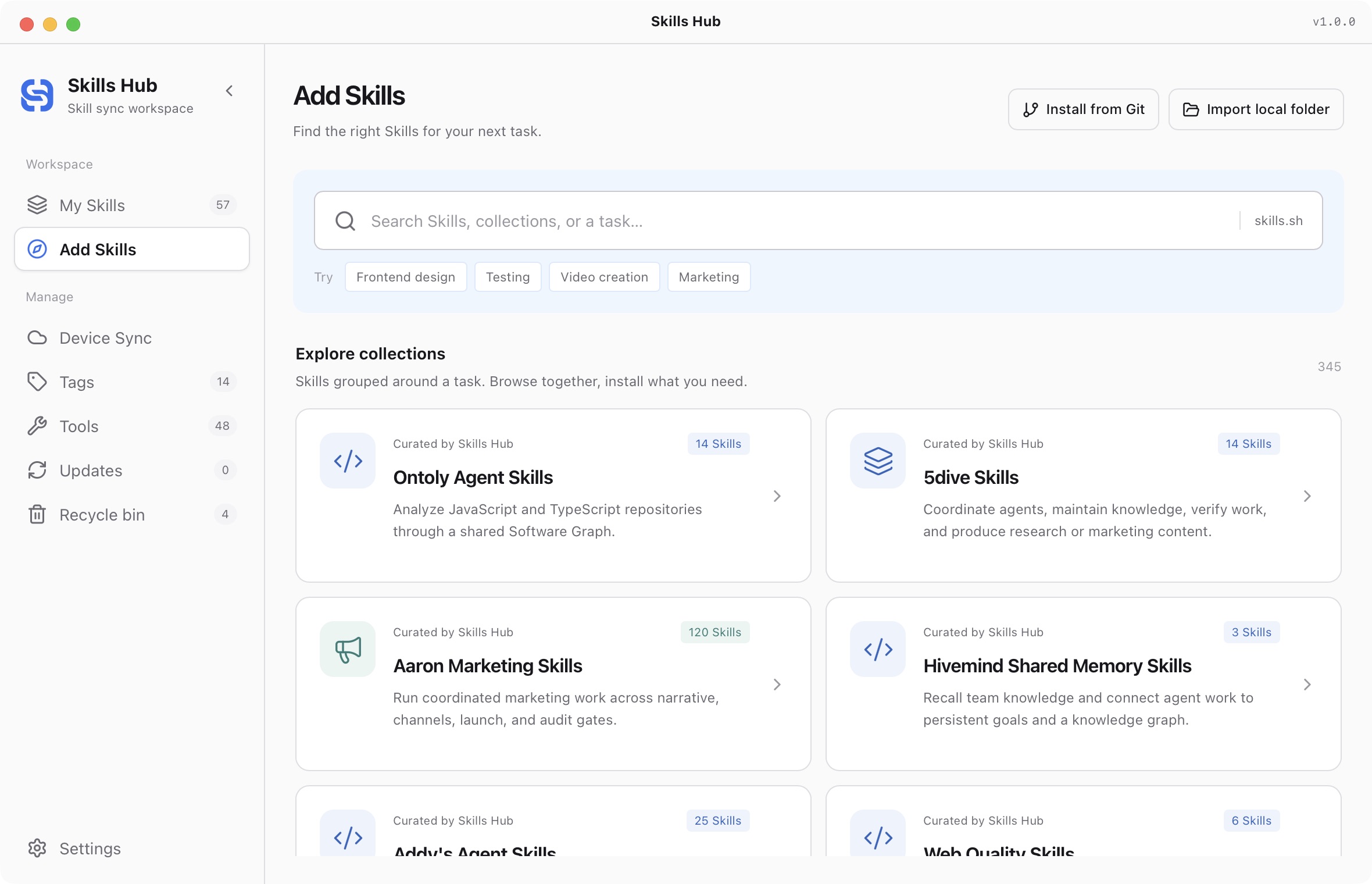
English interface (v1.0.0).
- Open a collection and read its description, included Skills, and repository sources.
- Click Choose Skills to open installation confirmation.
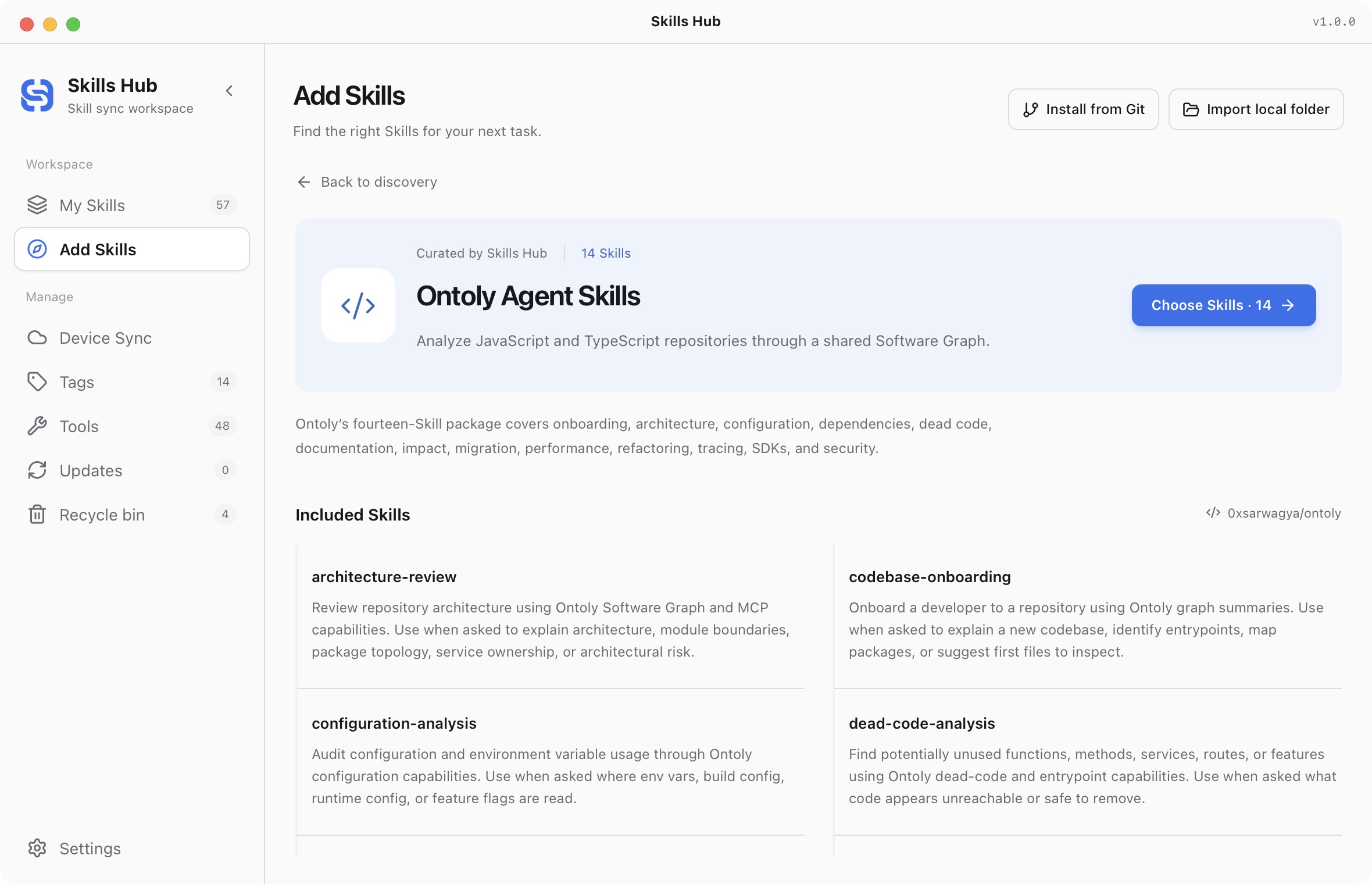
English interface (v1.0.0).
Collection search matches titles, descriptions, categories, tags, and authors. It does not search every Skill inside a collection. With at least two characters, the same page also shows individual Skill results from skills.sh.
The app uses the website's published collection data. If offline or a request fails, previously loaded and validated data can be available from cache. Uncached details still need a connection. Viewing cached collections does not guarantee offline installation of their Skills.
Open a collection from the website
- Open the collections page.
- Read a collection's purpose and source information.
- Select the Skills you need.
- Click Install in Skills Hub.
- Allow the browser to open Skills Hub if prompted.
The browser passes your selected list to the app. Opening the link does not install anything automatically. You can cancel in the confirmation window. If a large selection exceeds website link limits, select fewer entries or open the collection from desktop Add Skills.
Review selection and installation settings
- Wait for the local library check. If it fails, click Retry check.
- In Select Skills, review names, repositories, and directory paths. Deselect unwanted entries. Name conflicts cannot be selected.
- Click Next to open Installation settings. This does not start installation.
- Optionally select existing tags or create a tag, then choose tools and global or project scope.
- For project distribution, select project directories. Tools without project support cannot be selected. Windows currently supports global distribution only.
- Check the selected count, then click Install N Skills.
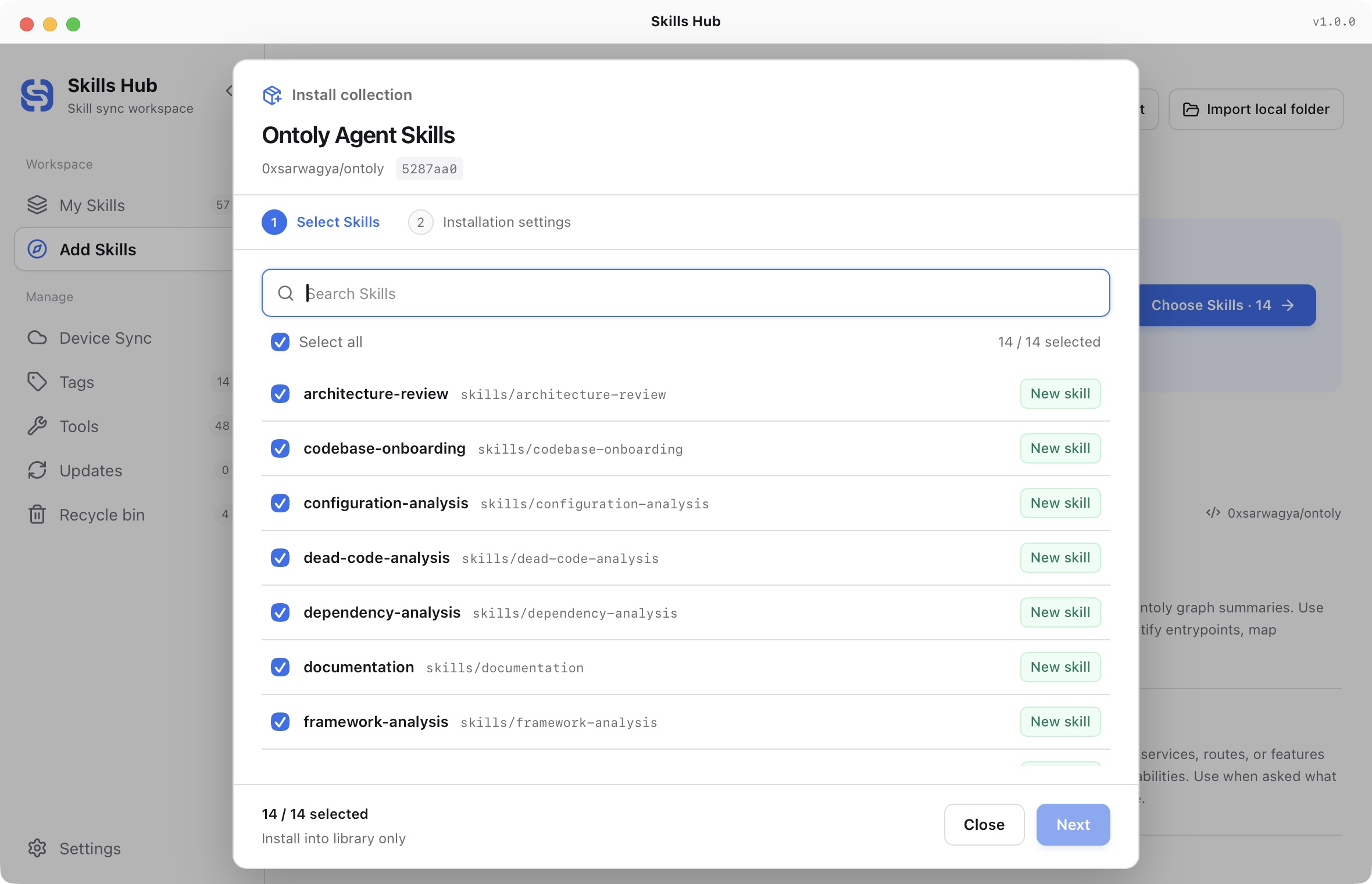
Step 1: Select Skills. English interface (captured in v1.0.0).
Leave all tools unchecked to install into the library only. Tools sharing a directory are selected together; review all affected tools. Before installation starts, you can go back without losing your selection or settings.
Available entries in the collection list are selected by default. Search filters the display without deselecting hidden entries. Select all or deselect all affects only visible, available entries. Installation processes all selected entries, including those hidden by search. Clear the search to review the complete list before confirming.
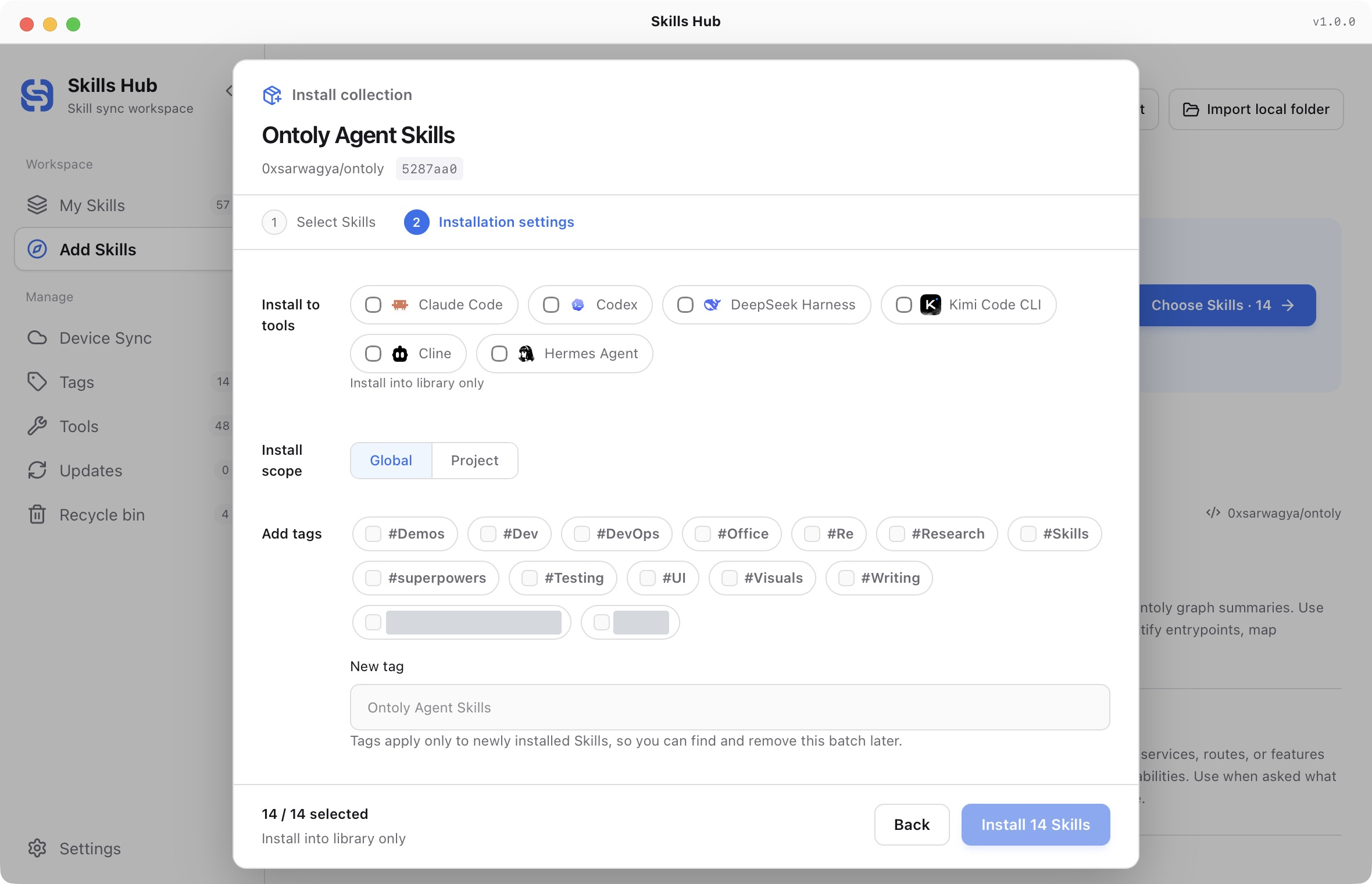
Step 2: Installation settings (v1.0.0). No tools are selected, so installation is limited to the library. Private tags are hidden.
New entries use the exact source commit in the collection manifest, which may differ from the latest repository content. Existing same-source entries keep their content. Tags apply only to newly installed entries; existing entries keep their tags.
Existing entries and failures
| Status | Meaning | Next action |
|---|---|---|
| Installed | The new entry, selected tags, and distribution completed | Inspect it in My Skills |
| Already in library | Existing content was kept; selected tool distribution is applied | Check targets in My Skills |
| Name conflict | The name belongs to another source and cannot be selected | Review the conflict; it is not overwritten |
| Failed | A source, tagging, or distribution operation did not complete | Read the error, resolve it, then retry |
Collection installation does not update existing same-source content. It can distribute those entries to the selected tools and scope. The initial local check is a preview; installation checks the sources again.
When all selected entries succeed, the window closes and shows the successful count. If some fail, the window stays open for Retry failed items. Successful entries are not reinstalled. If library installation succeeded but tagging or distribution failed, retry in that window continues with the installed record.
Skill selection and installation settings lock when installation starts. To change targets, finish or end the operation, then edit distribution from the library.
If opening or installation fails
- The browser does not open the app: confirm that v1.0.0 or later is installed. Open it manually and retry. Check for a blocked external-app prompt, or open the collection in desktop Add Skills.
- Another collection is open: finish or close it before opening the next collection.
- The link is invalid or the selection is too large: select fewer entries on the website or use desktop Add Skills. Do not edit the installation link manually.
- The revision does not contain the Skill: check the collection source. Do not substitute an unrelated folder with the same name.
- The library did not refresh: reopen My Skills and inspect the result before repeating the batch.
You can also pass the website's installation instructions to an Agent with AI Management enabled. The CLI has no dedicated collection command. The official management Skill installs, tags, and distributes each entry in the list.
- Quick start
- Download and install
- Library and sync concepts
- Find and install Skills
- Install collections
- Import existing Skills
- Organize your library
- Distribute to AI tools
- Manage tools
- Supported tools and directories
- Update Skills
- Sync across devices
- Delete and restore
- Settings and troubleshooting
- Manage with AI
- CLI reference