Settings and troubleshooting
Settings contains app-level options. Management Center contains tags, tools, and Skill updates. Identify the failed operation before troubleshooting.
Appearance, language, and app updates
Choose light, dark, or system appearance. The desktop interface supports Chinese, English, and Korean. This website provides Chinese and English guides. Changing interface language does not translate Skill files.
Open app updates from the title bar or Settings. Read the notes, install, and restart when convenient. See release notes and downloads for published versions. AI Management components have their own update action.
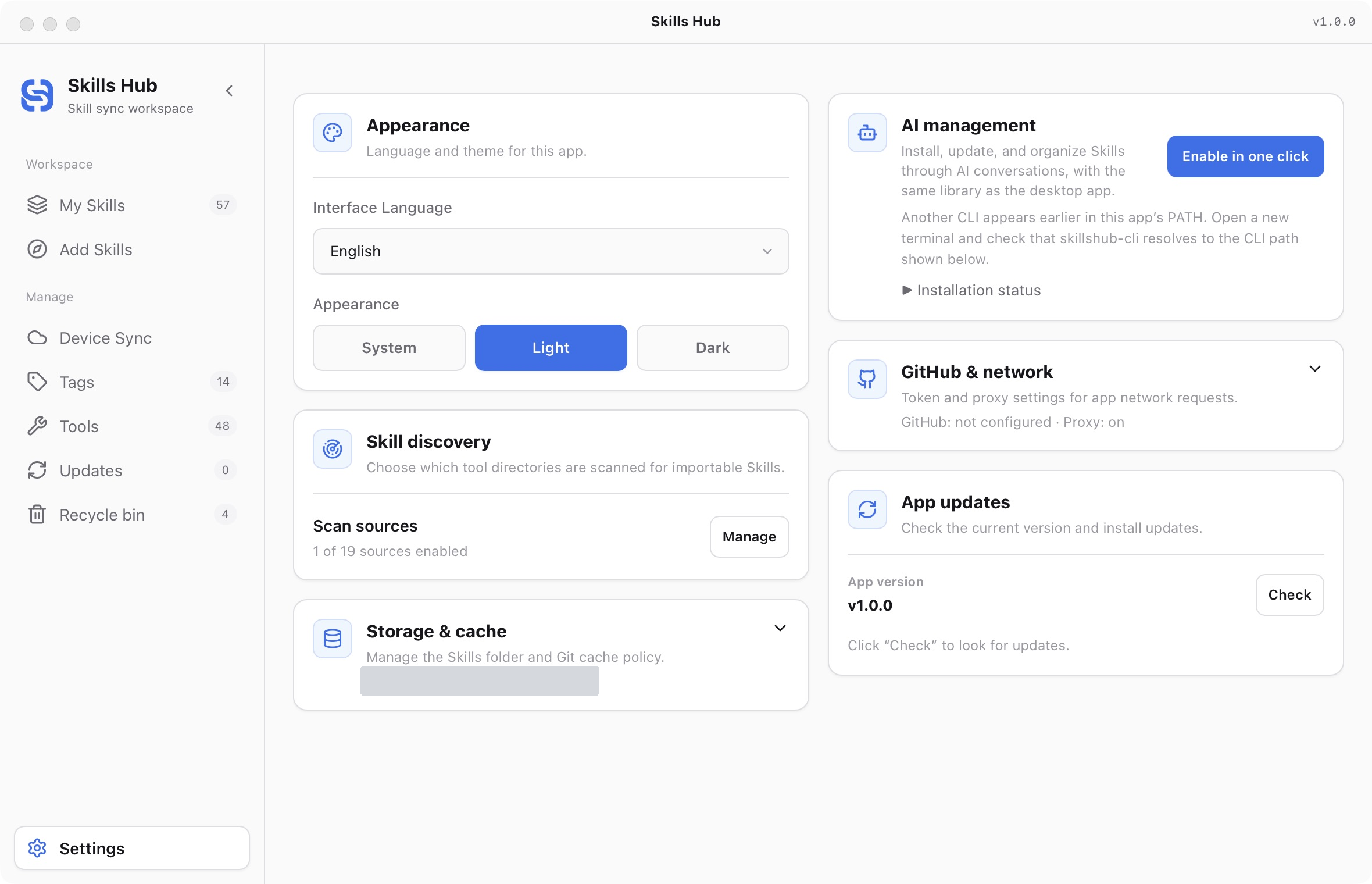
English interface (captured in v1.0.0).
Storage and cache
The default central library is ~/.skillshub. To move it:
- Open storage settings.
- Select a new library directory.
- Review the migration preview and affected Skills.
- Confirm, then inspect the library and tool status.
The destination must not overlap unsafely with the existing library, tool targets, or local sources. If migration fails, preserve the recovery information reported by the app. Do not empty the original directory manually.
Git cache reduces repeated downloads. Cache validity controls when remote content is fetched again. Retention and immediate cleanup control cache usage. Clearing cache does not delete the library or restore files missing from a source.
Proxy and credentials
The app proxy controls outbound HTTP, OAuth, app updates, and remote Git operations, including device sync. When it is disabled, do not rely on terminal environment variables or global Git proxy settings as a substitute.
Enter a GitHub Token or device-sync authorization only through the relevant app controls. Credentials belong in operating-system secure storage. Do not put them in Skills, repository URLs, screenshots, or chat messages.
If authorization expires, use the recovery control in the interface. Do not delete your library to repair credentials. Public reads generally do not need credentials; respond to the specific error if access is limited.
Common problems
| Symptom | Check first | Next action |
|---|---|---|
| Tool not detected | Installation, first launch, and actual directory | Review tool management or add a custom tool |
| Target already exists | Another source or independent edits | Compare content and use explicit conflict handling |
| AI tool cannot see a Skill | Library-only installation or failed distribution | Check target and scope, then refresh the tool session as required |
| Source missing | Moved local folder or inaccessible remote | Restore source access; saved library content remains inspectable |
| CLI command unavailable | AI Management setup and terminal restart | Use terminal repair in AI Management |
| Collections do not load | Connection, app proxy, and whether details were cached | Retry online; uncached details and source downloads can require a connection |
| Device sync failed | Permissions, credentials, branch, proxy, or conflicts | Inspect the specific failed entry in Device Sync |
| Operation busy | Desktop, CLI, or scheduled writes | Wait and retry; do not remove the write lock |
Report a problem
Record the app version, operating system, steps, expected result, and actual error. Submit the report on the project issue page.
Remove Tokens, authorization codes, private keys, and private paths or repository details before attaching screenshots or errors. Do not upload the whole database or credential files. For a collection problem, include its website URL and the failed Skill name.
- Quick start
- Download and install
- Library and sync concepts
- Find and install Skills
- Install collections
- Import existing Skills
- Organize your library
- Distribute to AI tools
- Manage tools
- Supported tools and directories
- Update Skills
- Sync across devices
- Delete and restore
- Settings and troubleshooting
- Manage with AI
- CLI reference