Manage tools
Open Management Center → Tools to manage built-in and custom tools. This page configures distribution targets. It does not install or launch the AI tools themselves.
See Supported tools and directories for the default Skills directories and detection locations of all 48 built-in tools.
Detection and enabled state
Detected and enabled describe different states. Detection checks tool configuration or directories. Enabling makes a tool available as a target. Enabling a missing tool does not install it.
- Install and run the AI tool.
- Open the tool page in Skills Hub.
- Check detection and the target path.
- Enable the tools you want to use.
- Return to the library and choose targets for each Skill.
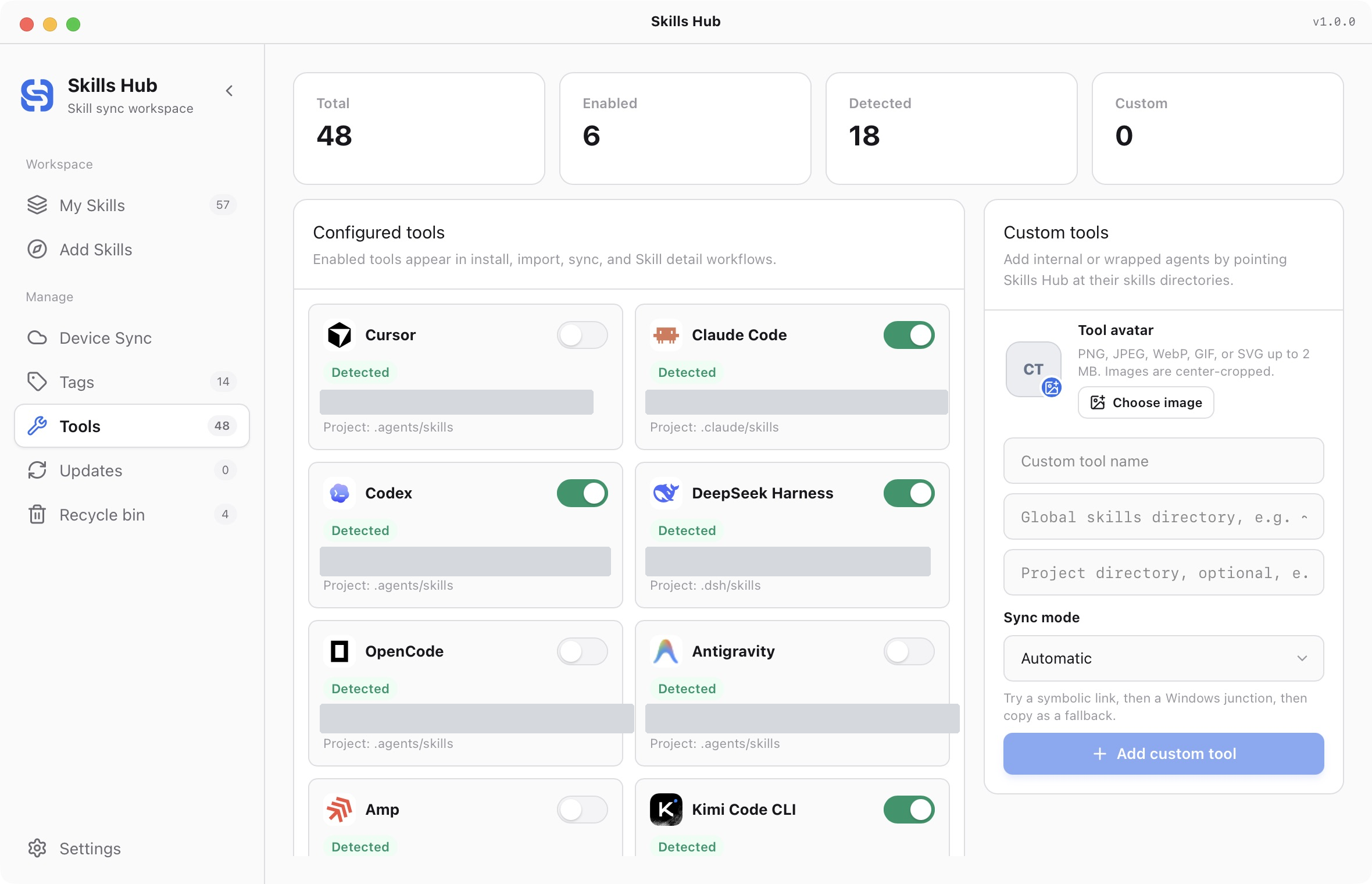
English interface (captured in v1.0.0).
If detection fails, check whether the tool uses a custom home directory. Some adapters support tool-specific home configuration. Do not create an unrelated directory only to change the detection status.
Add a custom tool
Use a custom target for an internal Agent or a tool that is not in the built-in list.
- Open the add-custom-tool control.
- Enter a recognizable name.
- Set its global Skills directory.
- Configure a project-relative directory if needed and supported.
- Choose an avatar and sync mode.
- Save, then select this tool when distributing a Skill.
Use the directory that the tool actually reads. You can use ~ for the current user's home directory. Do not choose the central library, an original source directory, or overlapping locations as arbitrary replacement targets.
Choose a sync mode
| Mode | Behavior |
|---|---|
| Automatic | Tries a link, then uses supported fallbacks |
| Symbolic link | Provides content through a symbolic link |
| Windows junction | Uses a Windows directory junction |
| Copy | Stores a separate copy in the tool directory |
Before selecting an explicit mode, check support in the operating system and AI tool. Not every tool reads linked directories. See distribution for details and Cursor's special behavior.
Edit or remove a tool
You can change a custom tool's name, avatar, directories, and mode. Active targets can require migration to the new directory or representation. Inspect the affected targets and any errors before proceeding.
Removing a custom tool does not delete every Skill from the central library. Independently modified tool copies are protected, so conflicts may need review before an operation can finish.
Some built-in tools share directories. Different names do not guarantee separate paths. When the app shows a shared-directory notice, make your decision from the actual affected scope.
- Quick start
- Download and install
- Library and sync concepts
- Find and install Skills
- Install collections
- Import existing Skills
- Organize your library
- Distribute to AI tools
- Manage tools
- Supported tools and directories
- Update Skills
- Sync across devices
- Delete and restore
- Settings and troubleshooting
- Manage with AI
- CLI reference