Organize your library
My Skills shows the content managed in your central library. Switch between cards and a list, search, filter, sort, and apply actions to selected entries.
Find a Skill
- Open My Skills.
- Search by words related to the name or description.
- Apply scope, tag, or other filters as needed.
- Open a matching Skill to inspect its details.
If a Skill is missing, clear the filters first. The filtered count can differ from the total library count. No search results does not mean that the library is empty. After AI or CLI changes, return to the app or reopen the library to refresh it.
Read the details
Details show the source, scope, tags, and tool status. Use the file tree to read SKILL.md, other Markdown files, or code. Copy the source path when you need to inspect the original content.
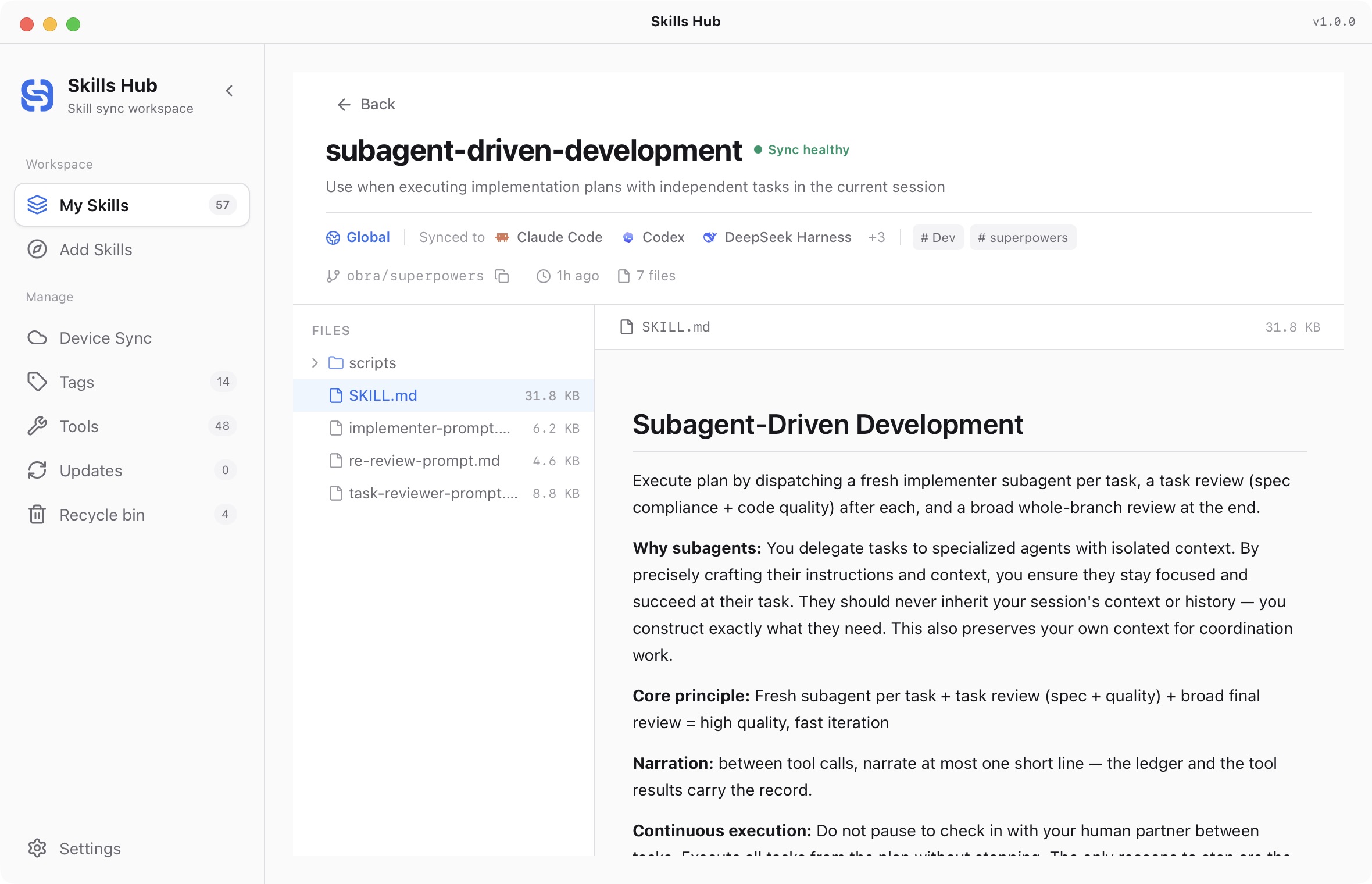
English interface (v1.0.0).
Reading a preview does not execute commands in the Skill. If the original source is unavailable, the saved library files can still be inspected. Check source update status separately from each tool's distribution status.
Organize with tags
- Open the Skill's tag settings or use a bulk tag action.
- Select existing tags or create tags through the interface.
- Save, then filter the library by that tag.
Maintain tag names in Management Center → Tags. Tags do not move Skill files or automatically change tool targets. Deleting a tag removes the classification, not the associated Skills.
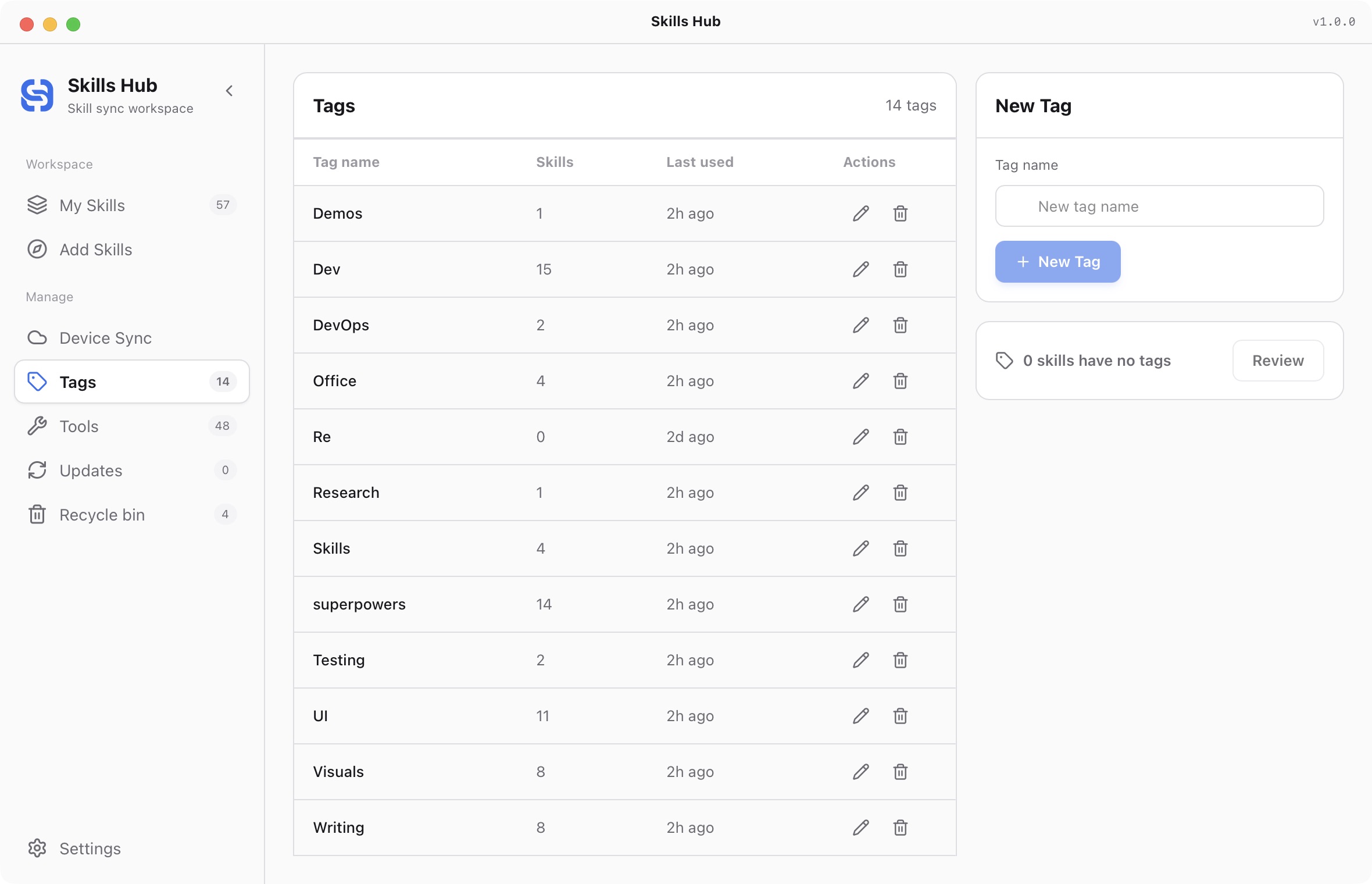
English interface (captured in v1.0.0).
For example, use tags such as frontend, testing, or writing to describe purpose. These remain easier to understand across devices than a machine-specific absolute path.
Apply bulk actions
- Filter the list to the scope you need.
- Select the visible entries you want to change.
- Choose a bulk action for updates, tags, tools, enabled state, or deletion.
- Review the confirmation before applying it.
- Inspect any failed entries in the result.
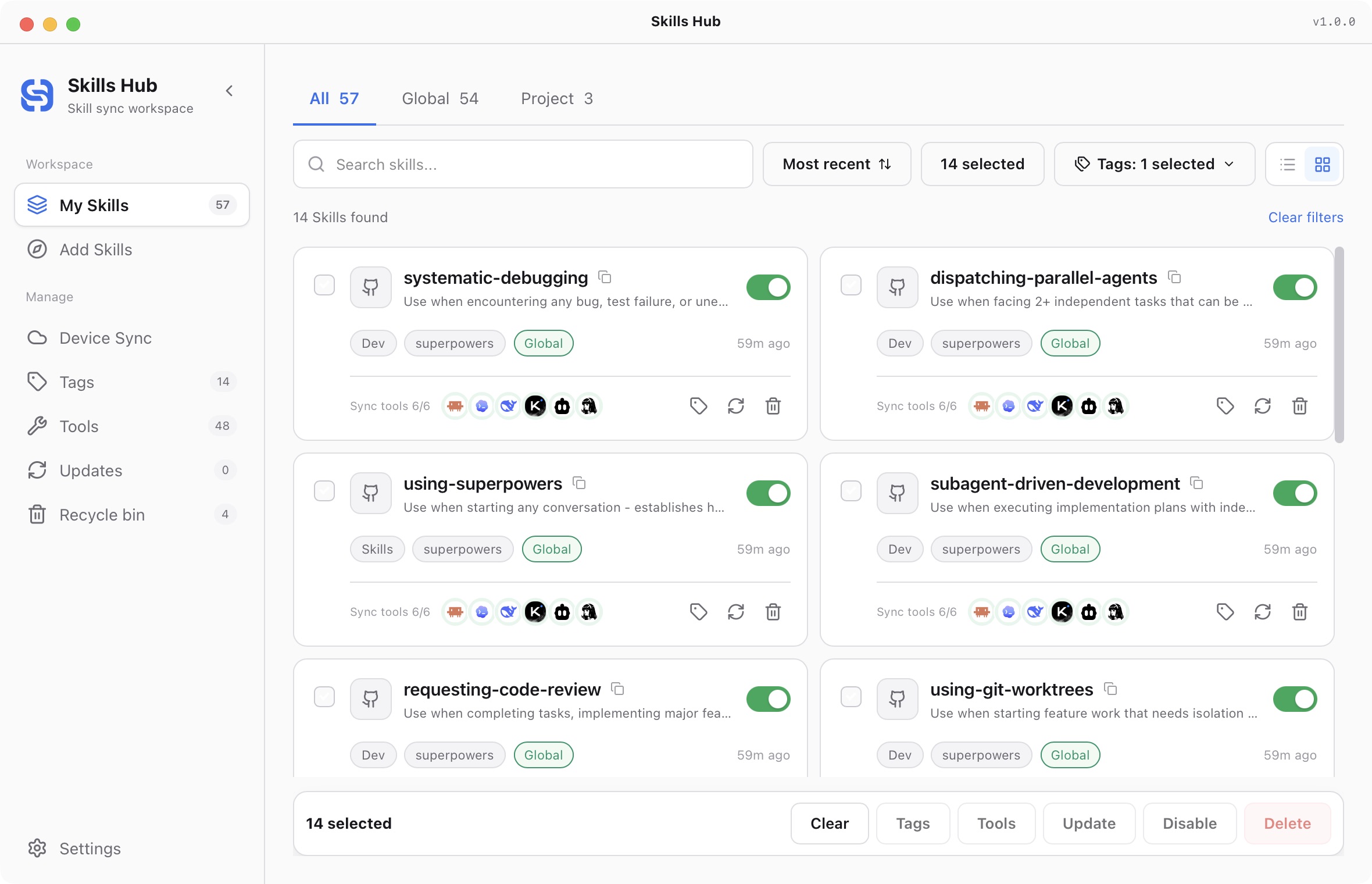
English interface (v1.0.0). Filtered by the superpowers tag with 14 Skills selected; the bottom toolbar includes Update.
To update several Skills, enter bulk mode, select the entries, and run the bulk update action. See Update multiple Skills for steps and source requirements.
Bulk tool selection applies the selected target set. Unchecked tools can be removed from the selected Skills' targets. This operation does not only add targets, so review the complete list.
After changing filters, check the visible selection again. Do not assume that hidden entries participate in the operation.
Disable or delete
Disable a Skill when you temporarily do not need it. Library content and configuration remain available. Re-enabling can restore the saved tool configuration.
Delete removes a Skill from the managed library and places it in the local recycle bin. Review each entry before bulk deletion. See Delete and restore for recovery and retention.
- Quick start
- Download and install
- Library and sync concepts
- Find and install Skills
- Install collections
- Import existing Skills
- Organize your library
- Distribute to AI tools
- Manage tools
- Supported tools and directories
- Update Skills
- Sync across devices
- Delete and restore
- Settings and troubleshooting
- Manage with AI
- CLI reference