Delete and restore
Disabling, removing a tool target, and deleting a Skill have different effects. Choose the operation that preserves what you need.
Choose the operation
| Operation | Tool-side content | Central library |
|---|---|---|
| Remove one tool target | Removes that distribution | Keeps the Skill |
| Disable a Skill | Removes tool-side sync | Keeps content and configuration for re-enabling |
| Delete a Skill | Cleans managed targets | Moves the Skill to the local recycle bin |
| Permanently delete | Does not clean other computers | Removes recycle-bin content; it cannot be restored from that bin |
If you temporarily do not want an AI tool to use a Skill, disable it. Do not delete and reinstall it as a substitute for enabling and disabling.
The table describes successful operations. If the app reports that disabling succeeded but some tool directories could not be cleaned, files may remain and AI tools may still read them. Inspect the reported locations and resolve the remaining files. Disabled status alone does not confirm removal.
Delete Skills
- Select entries in My Skills.
- Choose delete.
- Read the entries and affected scope in the confirmation.
- Confirm deletion.
- Check the records in Recycle Bin.
The app protects original sources, overlapping paths, and independently edited tool copies. If deletion is blocked, inspect the reported path and reason. Do not recursively delete the directory that a tool link points to.
If the app reports that the Skill was saved in the recycle bin but some original files could not be removed, inspect the bin record and reported paths. Archiving has already completed; do not repeat deletion as if nothing happened.
For bulk deletion, review both the filtered selection and the final confirmation list.
Restore deleted content
Deleted Skills remain in the local recycle bin for up to 30 days. Startup and daily cleanup remove expired entries. The recycle bin is not a long-term backup.
- Open Recycle Bin.
- Review the name, deletion time, and details.
- Select restore.
- Check the library and tool status after restoration.
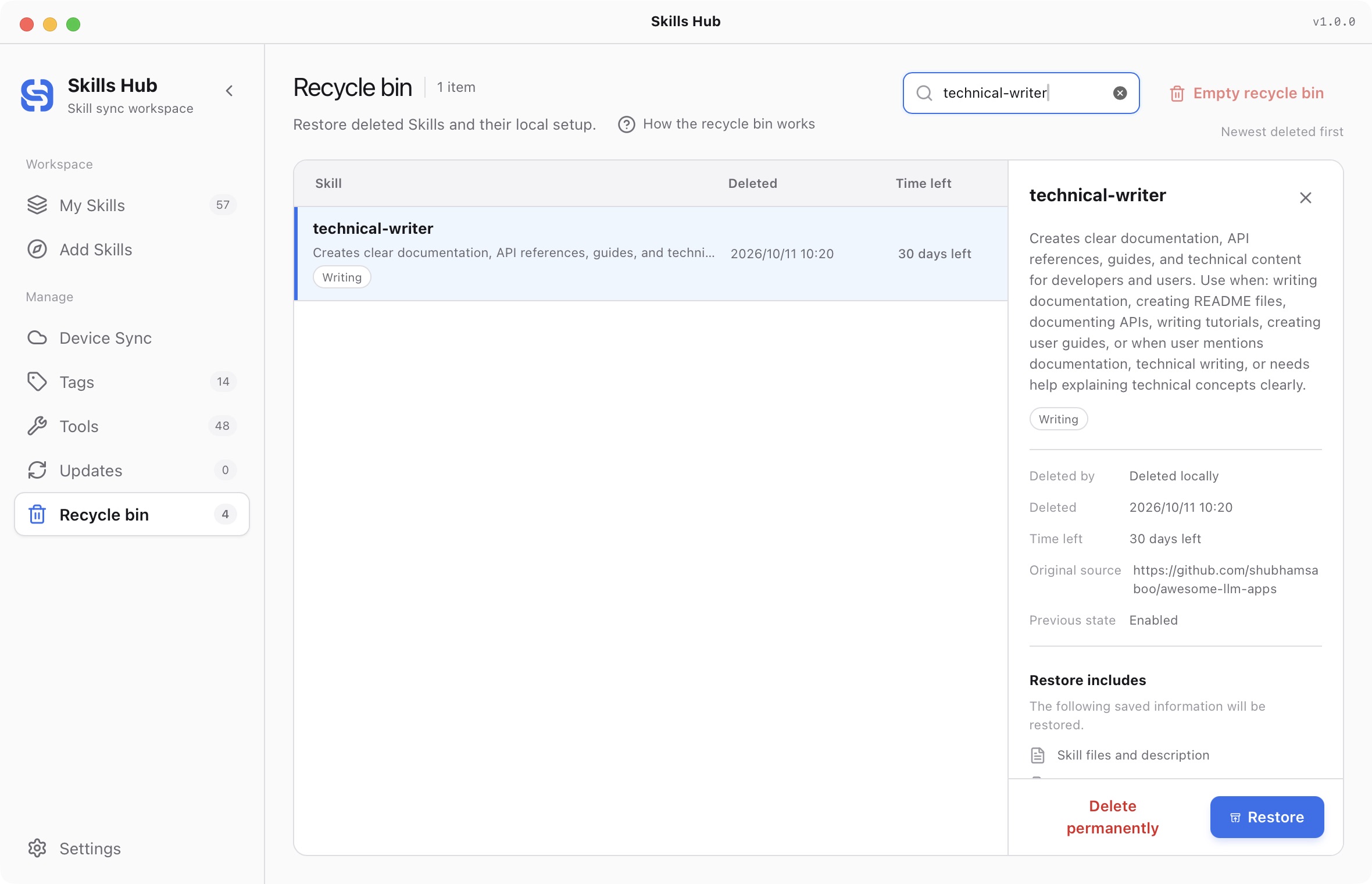
English interface (captured in v1.0.0).
Restoration recovers library content, tags, and saved local records, then attempts to restore the tool targets listed in the interface. Targets excluded from restoration stay disabled. An occupied central-library location can block restoration; resolve that location conflict first.
Library restoration can succeed while tool distribution fails. If a tool directory already exists or distribution fails, the Skill may already be back in the library and removed from the recycle bin. Open My Skills, inspect failed targets, resolve conflicts, and distribute again. Do not repeat recycle-bin restoration or overwrite new content.
The local recycle bin is not copied to other computers as a complete backup of local configuration. Inspect device-sync changes separately from local recovery.
Permanently delete or empty the bin
Permanently delete an entry only when you no longer need to restore it. Emptying the bin removes all recycle-bin content and requires typed confirmation. Check for files you need before entering it.
Permanent deletion cannot be undone through that bin. If cleanup partly fails, inspect remaining entries and errors before acting again. A failure message does not establish that every item was deleted.
Skills removed by AI or CLI also enter the local recycle bin. Restoration and permanent deletion remain desktop operations.
- Quick start
- Download and install
- Library and sync concepts
- Find and install Skills
- Install collections
- Import existing Skills
- Organize your library
- Distribute to AI tools
- Manage tools
- Supported tools and directories
- Update Skills
- Sync across devices
- Delete and restore
- Settings and troubleshooting
- Manage with AI
- CLI reference