Skill presets and history
A Skill preset saves a named combination of installed Skills and per-member tool assignments. It does not store project paths. Desktop v1.1.0 lets you choose global or project locations when applying the combination.
Create and maintain a preset
- Open Skill presets and select New preset.
- Enter a name and an optional purpose.
- Search and select installed Skills, then choose each member's tools.
- Review the combination and save it to return to the list.
New members default to currently available tools. Change these defaults or edit individual assignments in the editor. Select-all affects current search results; clearing them keeps members hidden by search. Each member needs at least one tool before saving.
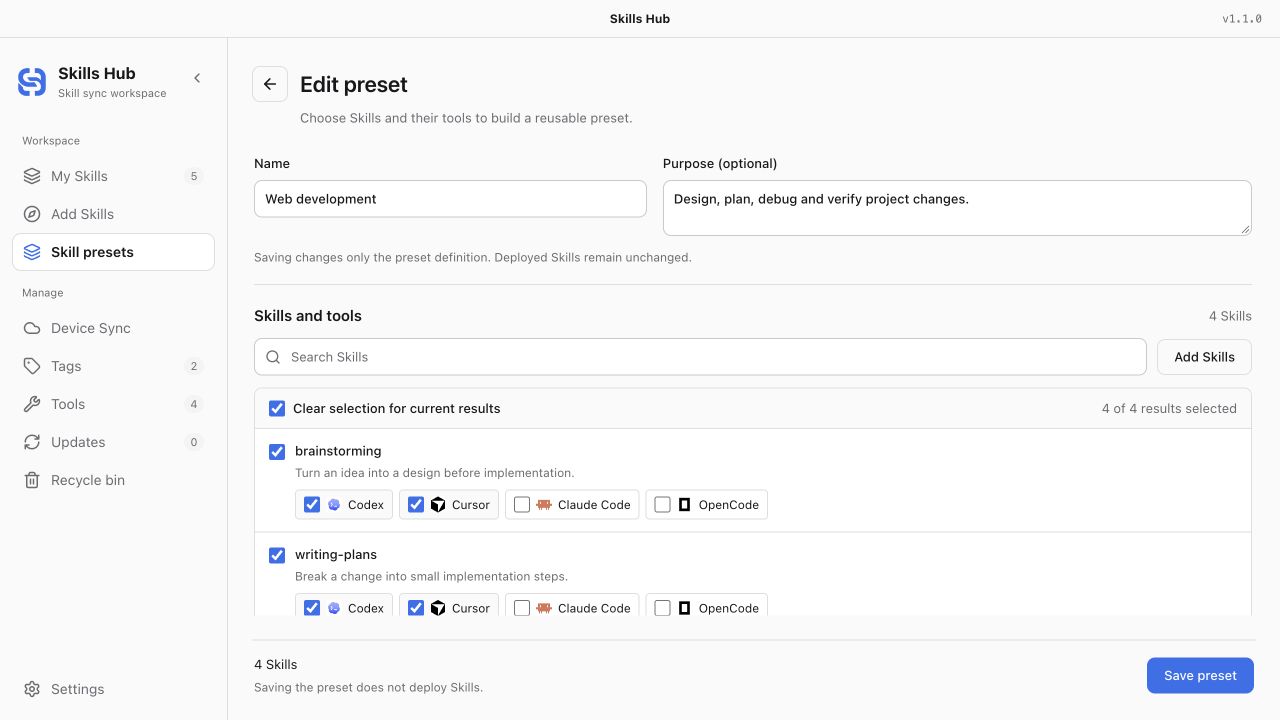
English v1.1.0 frontend with sample data.
Editing or deleting a preset changes its definition without changing existing deployments. Use Create copy in a row's More actions menu to keep the original combination. Deleted library members remain unresolved references instead of being silently replaced by another Skill with the same name.
Apply globally or to projects
- Click Apply to… in the preset list.
- Select Global or one or more project folders.
- Review members and tools. Temporary changes affect only this application.
- Check each Skill and location in the result. Inspect paths and reasons when conflicts occur.
Preset application is additive. Existing deployments remain, including projects outside this selection. Applying an edited preset does not automatically uninstall its former members. Use project target settings to add or remove a specific Skill's deployment locations.
Read history and retry
All application records stores actual outcomes, including partial success and interruptions. Rechecking uses the same record and only processes unfinished items. Completed work is not repeated. Resolve source access, directory permissions or modified files before continuing from the result's recovery action.
History keeps the 100 most recent finished records plus runs in progress or awaiting recovery. Cancelling an unexecuted preview clears its temporary record. Pruning a finished record does not remove installed Skills, but ends undo access through that record.
Undo additions
- Open a completed application record and choose Undo additions.
- Review deployments to remove and deployments that must stay.
- Confirm, inspect the outcome and resolve any remaining items.
Undo only removes additions that are still safely attributable to this application. Existing, subsequently reused or modified targets stay. A physical directory also stays while another logical tool needs it. The preview explains retention reasons. Undo is not a complete filesystem or database rollback.
Compare recovery actions
| Action | What changes |
|---|---|
| Delete preset | The combination definition; existing deployments stay |
| Undo application | Eligible new deployments; no pre-update content restoration |
| Restore after updating | The latest pre-update Skill content; see Update Skills |
| Restore from recycle bin | A deleted library entry; see Delete and restore |
Presets are local. Version 1.1.0 does not sync presets or application history across devices and has no preset CLI commands. Manage combinations in the desktop app.
- Quick start
- Download and install
- Library and sync concepts
- Find and install Skills
- Install collections
- Import existing Skills
- Organize your library
- Skill presets and history
- Distribute to AI tools
- Manage project Skills
- Manage tools
- Supported tools and directories
- Update Skills
- Sync across devices
- Delete and restore
- Settings and troubleshooting
- Manage with AI
- CLI reference